Family chores & allowance app
Real money skills.
No real money.
Teach your kids about earning money with chores, allowance, and savings goals in a virtual account we call a pond.


- Free to try
- $19.99 once, no subscription
- No ads
How it works
-
Add your kids
Use your currency or play money like lily pads.
-
They earn and spend
Post chores and set an allowance. Log what they spend in real life.
-
They save
Kids pick a goal and a picture, then watch the bar fill.
Read why a parent built this allowance app after a stolen debit card number
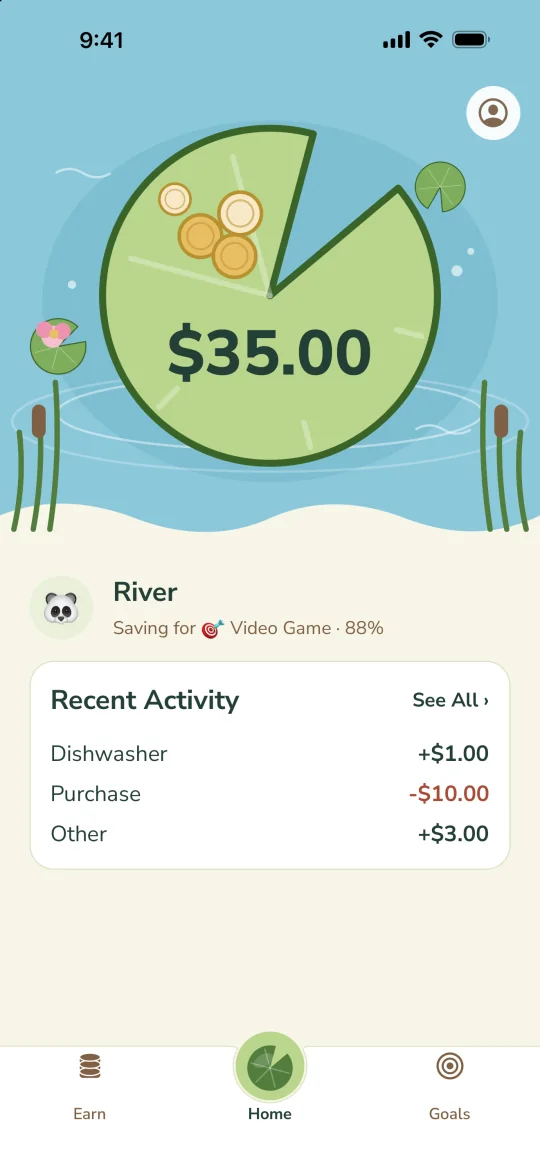
You stay in charge. They see their Pond.
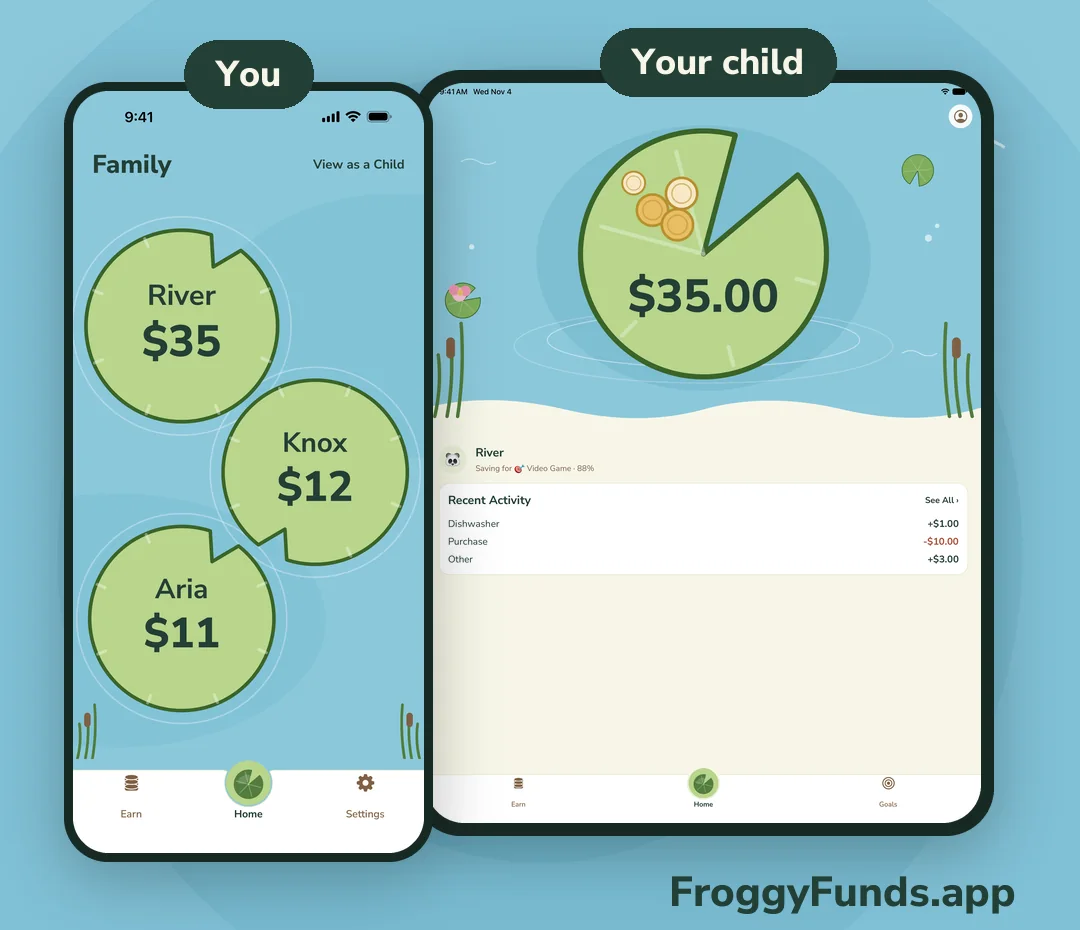
- You post chores, approve the work, and see every balance at a glance.
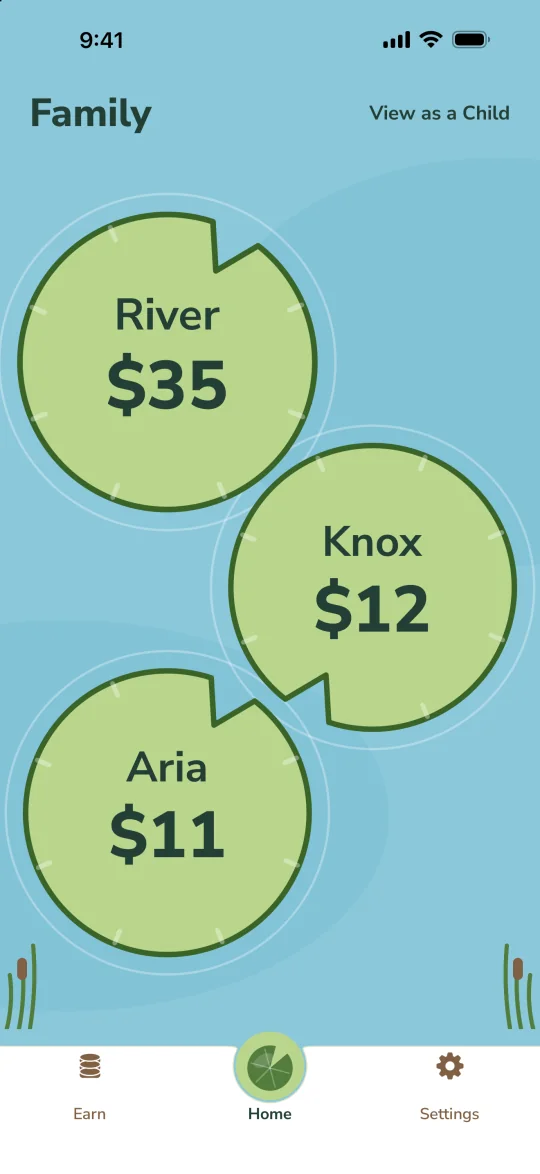
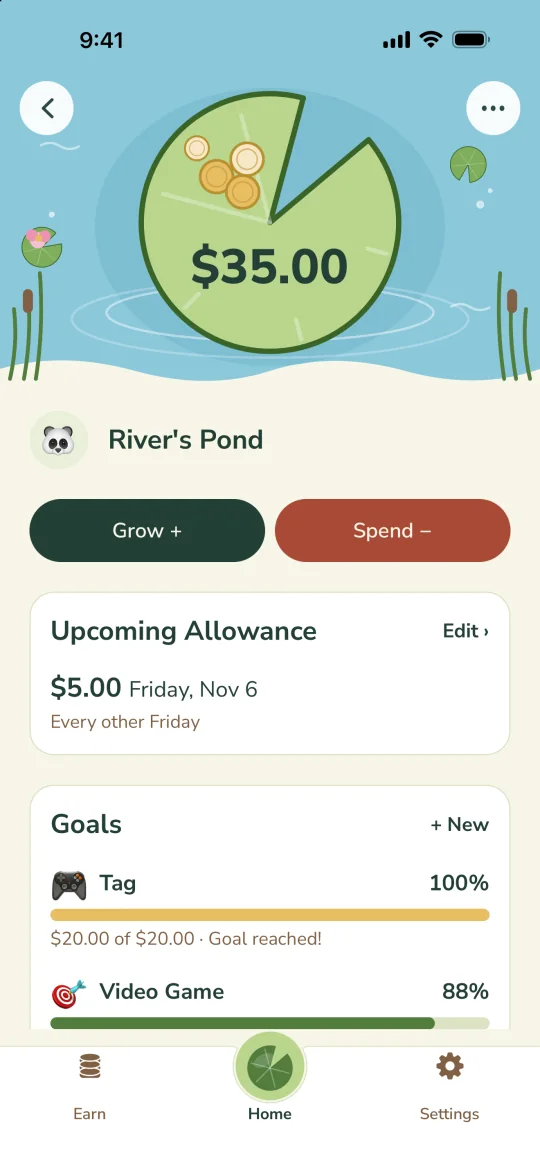
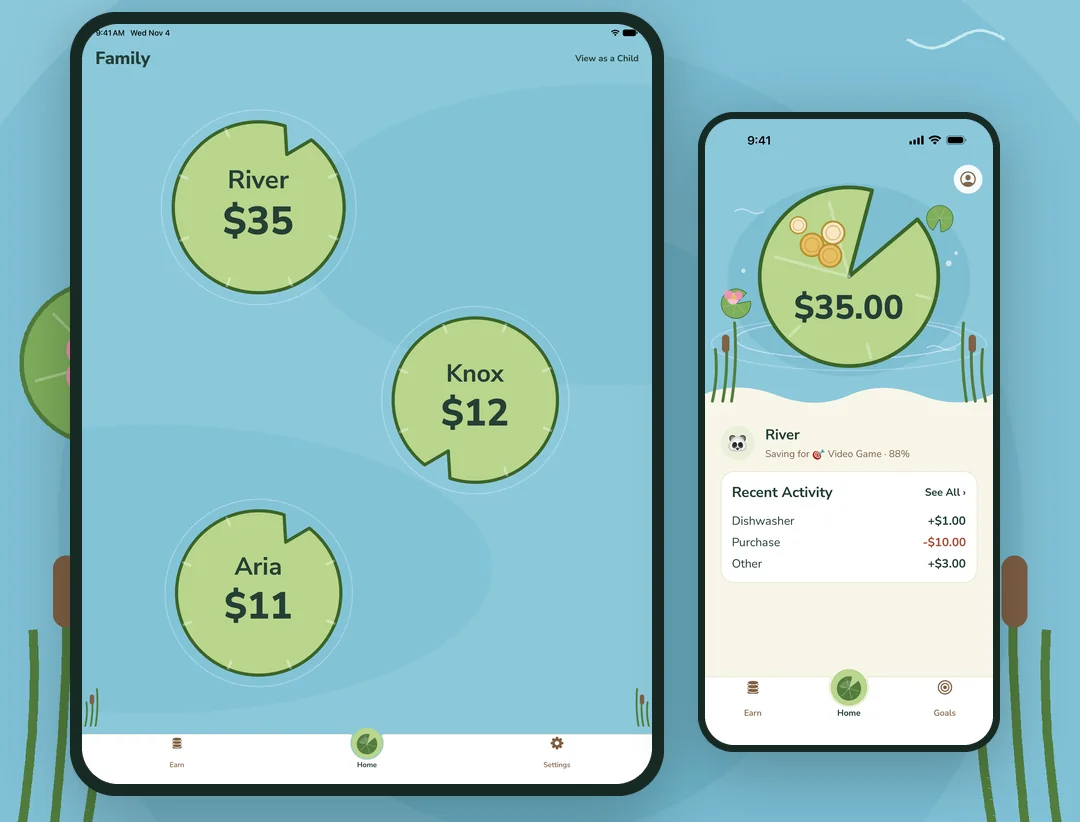
- Your child sees their balance on a lily pad, their chores, and the goal they’re saving for.
Kids get their own login
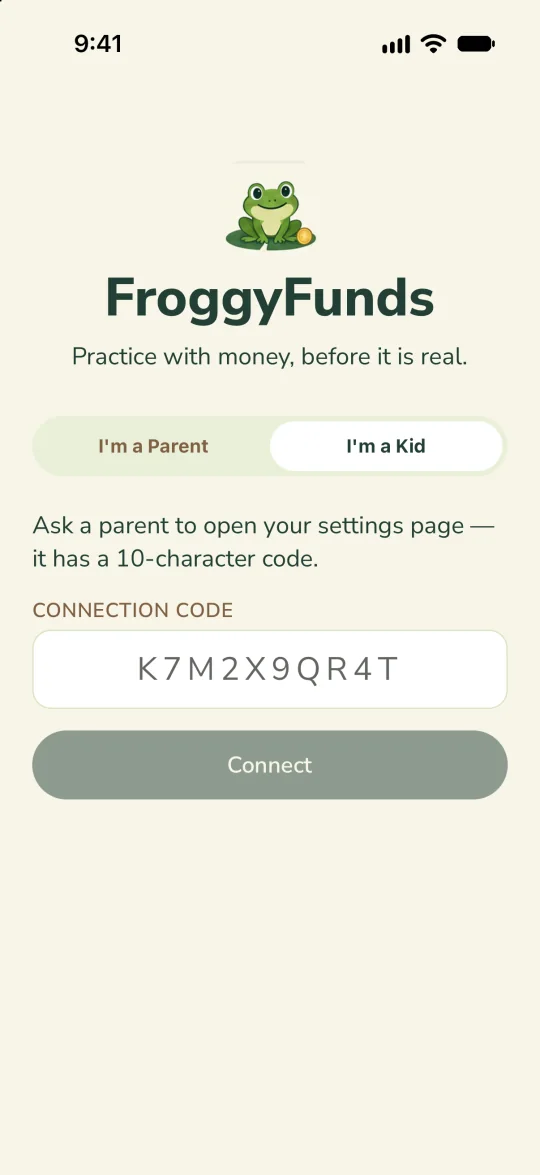
- Open your child’s settings and get a one-time code.
- On their phone or tablet, they tap I’m a Kid and enter it.
- No email or password. They see only their own Pond, chores, and activity.
A peek inside
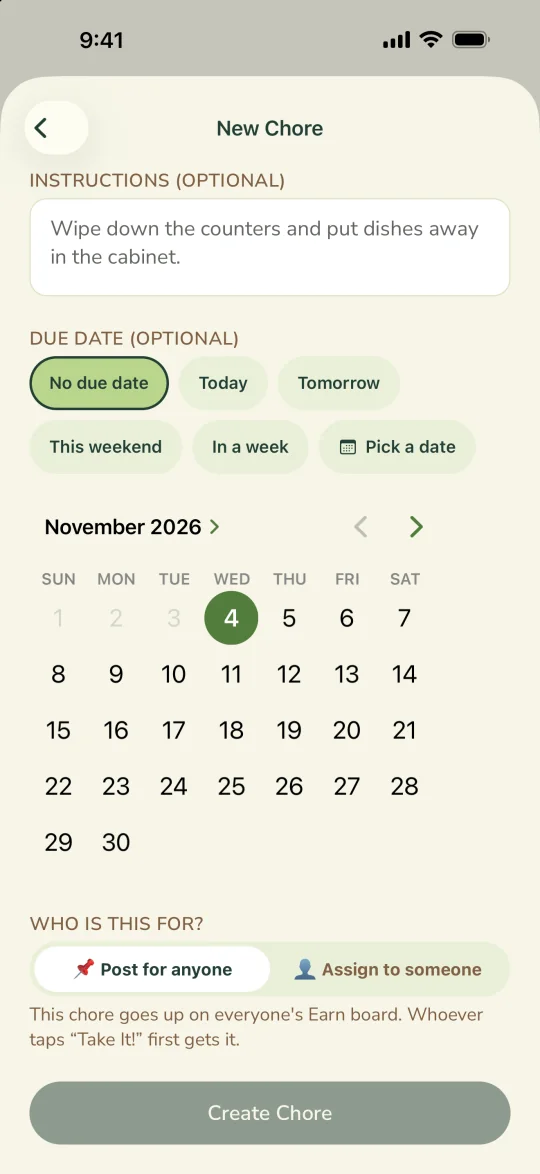
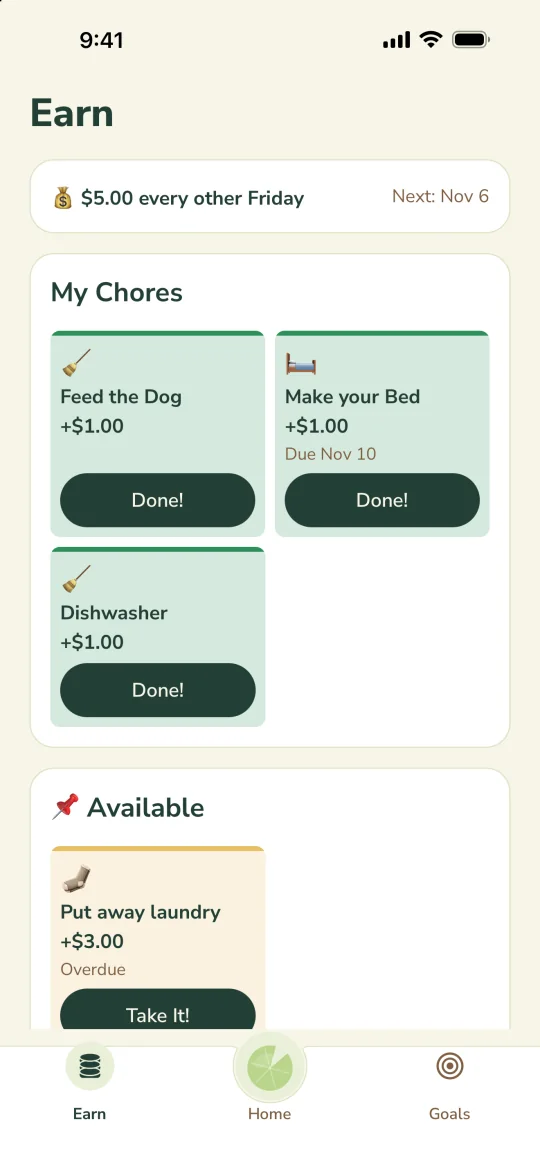
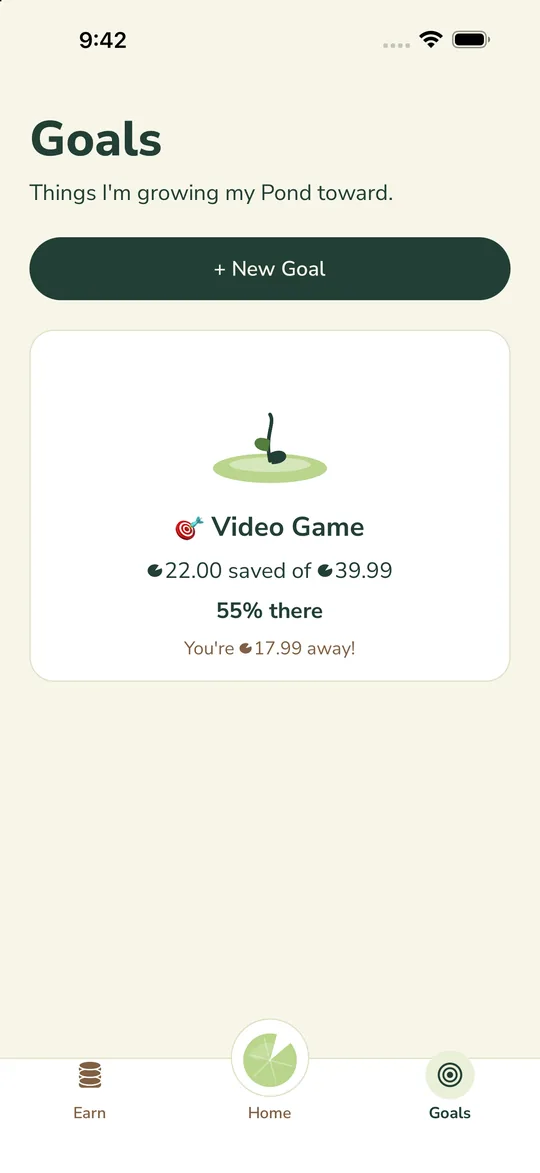
New in version 1.3
- Family pond: every child on their own lily pad.
- Goals: pick a picture and follow a simple progress bar.
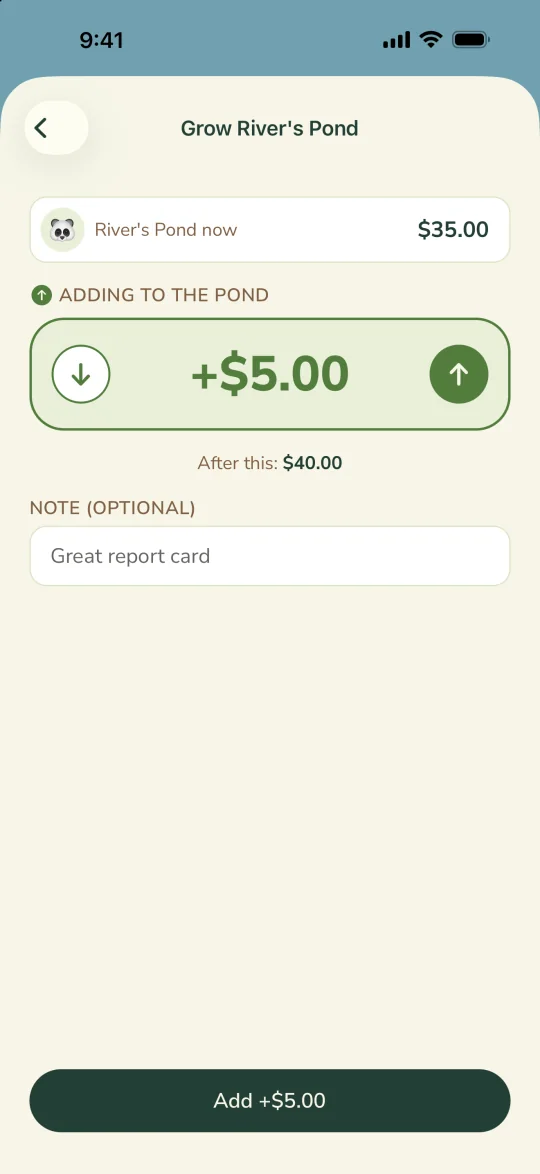
- Grow and Spend: clearer amounts, with cents.
- Chores: pick any due date from a calendar.
Made for families
Kids get their own device
Connect a phone or tablet with a one-time code. No email or password needed.
Parents share the work
Invite a co-parent or guardian with their own sign-in.
Your data stays yours
No bank links, ads, or ad tracking. Delete your family’s data any time.
Pricing
Free
$0
- 1 child and 1 parent
- Balance and activity
Lifetime unlock
$19.99
- Up to 8 children
- Up to 4 co-parents
- Chores, allowance, and goals
US price; your app store shows your local price. Restore a past purchase in the app.
FAQ
Does it use real money?
No. There are no bank accounts or cards. You log what your child earns and spends in real life, and FroggyFunds keeps the ledger.
How do kids use it?
Tap “View as a Child” on your device, or connect their own: make a one-time code in the child’s settings, then enter it under “I’m a Kid” at sign-in.
How does allowance work?
Pick an amount and a weekly, biweekly, or monthly schedule. It’s added to their balance automatically. Paying out real money is up to you.
I switched phones. How do I get my unlock back?
Tap “Restore Purchase” on the unlock screen.
What information do you collect?
A parent’s email, plus the first name and avatar you choose for each child. No birthdays, photos, or addresses. See the Privacy Policy.
How do I delete my account?
In the app, go to Settings → Delete Account, or email [email protected]. Your family’s data is deleted with it.